How to Use AI in Google Photos to Enhance Digitized Videos and Photos
You can use AI tools in Google Photos to improve digitized photos and videos by enhancing lighting, adjusting color, reducing blur, and removing unwanted distractions. Available editing features depend on the photo, device, and account. These tools can make old memories look clearer and more polished while keeping digital copies easy to organize and share.

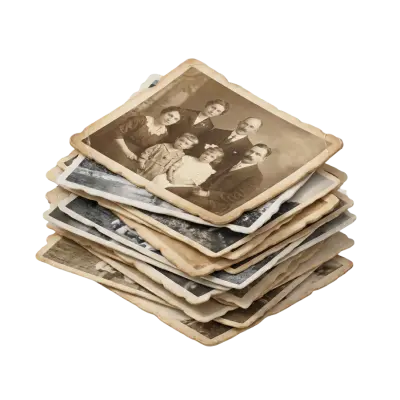
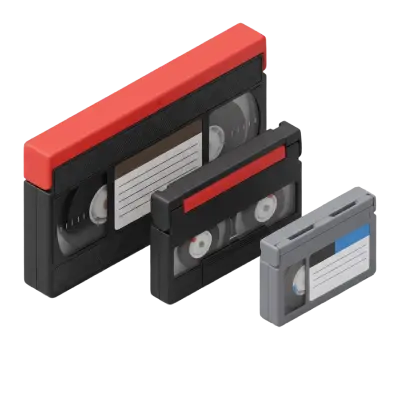
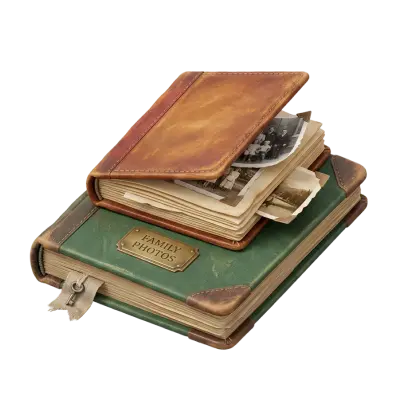
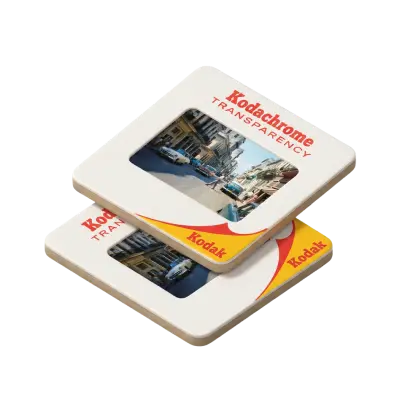
Digitizing your old tapes, albums, and photos is just the beginning. If you want to get even more out of those preserved memories, learning how to use AI in Google Photos to enhance digitized videos and photos is the next step. Google Photos offers built-in AI tools that can improve image quality, organize your content automatically, and help you rediscover moments you may have forgotten. With Capture, your digitized files are delivered directly to your Google Photos account or provided in standard formats you can upload yourself. You’ll have immediate access to intelligent editing features - without needing extra apps or technical skills.
How Google’s AI Enhances Your Photos and Videos
Google Photos offers more than just storage. It helps you get more out of every memory with built-in intelligence that works quietly in the background to organize, enhance, and surface meaningful moments.

Thanks to Google Photos AI, even decades-old images can be automatically sorted, enhanced, and rediscovered—without any manual effort.
Facial recognition and smart tagging
AI automatically detects faces, objects, and even pets, grouping your photos by person or theme. You can quickly create an album of your child growing up or instantly find every image with your grandmother — even if your files have no labels or captions. You can search by face, keyword, or visual detail, making it incredibly easy to locate specific memories across your entire library.
Auto enhancements and filters
Old home videos, scanned prints, or MiniDV tapes converted to digital can look better than ever. With just one tap, Google Photos can boost lighting, reduce blur, and sharpen faded colors. AI-powered editing tools like the Magic Editor and the Magic Eraser in Google Photos allow you to fix imperfections intuitively. You can blur distracting backgrounds, adjust lighting, or remove unwanted elements — all within seconds. These tools are available on select devices, and many of their features are free to use.
Smart albums and rediscovery tools
Google Photos also automatically creates albums based on events, dates, and people. You might receive a notification to "Rediscover this day," helping you revisit a birthday from 1993 or a long-forgotten family vacation. These smart albums and memory prompts work even for analog photos and videos you’ve just digitized, creating a personalized and evolving archive. If you want to take things further, the built-in Google Photos video editor makes it easy to trim clips, adjust lighting, and apply filters to your rediscovered footage. Most of these AI features are built into your Google account and are available at no extra cost.
Step-by-Step: Access and Use Google Photos with Capture Files
Here’s how it works when you digitize with Capture:
Direct delivery to Google Photos: We can sync your digitized files directly into your account — no uploading or transferring required.
Compatible file formats: You also receive MP4, JPEG, and other standard formats so you can use them on any platform.
No platform lock-in: You own your files and can edit or back them up however you choose.
Best of all, you don’t need to enable anything extra to take advantage of Google Photos’ AI features. As soon as your files appear in your library, Google’s smart tools start working automatically — organizing by faces, enhancing visuals, and surfacing memories without any setup required.

Capture sends your files straight to Google Photos for instant access.
Why Capture + Google Photos Offers More Than Other Platforms
Not all digitization services offer the same freedom once your files are delivered.
Some platforms, like iMemories, use proprietary software such as Mackenzie AI, meaning your files stay locked inside their app. You can’t edit freely, use outside tools, or move your content without restrictions.
Capture takes a different approach. You get open, high-quality files that work anywhere — including seamlessly with Google Photos. Whether you convert old home movies to digital, or turn slides into digital images, you can edit with powerful built-in tools you already know, organize your library however you like, and always have access to the original files.
And we’re not stopping there. Coming soon, Capture will introduce an AI-powered HD upscaling feature designed to intelligently enhance the resolution of older video footage. From grainy VHS clips to blurry camcorder recordings, this new tool will make your memories look better than ever on today’s screens, all while preserving their original feel.
It’s a simple, flexible, and intelligent way to get the most out of your memories.
Quick FAQ
How do I enable AI in Google Photos?
You don’t need to enable anything. AI features like facial recognition, smart albums, and auto enhancements are built into Google Photos and work automatically.
How to use Google AI photo search?
Just type a person’s name, location, object, or even a color in the search bar. Google’s AI scans your entire library and shows matching results instantly.
How do I use Google Photos’ Magic Editor?
Open a photo, tap "Edit," and select Magic Editor to adjust lighting, blur backgrounds, or remove unwanted objects.
Can I edit videos in Google Photos?
Yes. Trim, crop, add filters, or adjust lighting using the built-in Google Photos edit video features.
Do I need to pay for Google’s AI features?
Most AI-powered tools in Google Photos are free. Some advanced features may require a Pixel device or newer Android update.

Now that you know how to use AI in Google Photos to enhance digitized videos and photos, it’s time to put your memories to use.
Make the Most of Your Memories
You didn’t digitize your family videos, convert photographs to digital, and preserve old photo albums just to store them. You did it to experience them again. With Capture and Google Photos, those memories do more than sit in folders. They come back to life, enhanced, organized, and easy to revisit anytime.
Artificial intelligence makes it easier than ever to reconnect with your past. Whether you want to search by face or edit a photo in Google Photos to bring out hidden details, today’s tools make it simple and accessible. And with Capture, you are always in control of how you view, edit, and share those memories.
Now that you know how to use AI in Google Photos to enhance digitized videos and photos, you can go beyond preservation and start celebrating your story in a whole new way.
Bring your memories back to life.
You May Also Like

Does Walgreens Transfer VHS Tapes and Photos to Digital? What to Know Before You Decide
Yes, Walgreens transfers VHS tapes, film, photos, negatives, and slides to digital — but the work is outsourced to iMemories, not done in-store. Video converts to DVD, Blu-ray, or cloud; photos convert to USB only. Turnaround typically runs 3–5 weeks.

Forever Studios Reviews 2026: Is It Worth It? Quality, Pricing & Comparison
Yes, Forever Studios is a legitimate digitizing service. Based in Boca Raton, Florida, it specializes in transferring VHS tapes, camcorder tapes, film reels, photos, slides, negatives, and audio cassettes to digital formats. Most Forever Studios reviews praise the company's restoration quality and careful handling of sentimental media. The most common criticisms focus on quote-based pricing, longer-than-expected turnaround for some orders, and uncertainty over whether the Forever Gold upgrade delivers enough additional value. If preserving aging videotapes is your priority, Capture's VHS to Digital service includes published pricing, AI-enhanced restoration, and predictable turnaround times, making it easier to compare before placing an order.